
-
[ Next ] Alert, Confirm 커스텀 HookFront/Next 2025. 12. 5. 13:47반응형
alert이나 confirm을 직접 커스텀하여 만들려고 하기에
직접 커스텀 hook을 만들어서 사용했다.context는 전역 데이터를 전달하기 위한 것이며 provider를 통해 값을 넣어준다.
provider는 context에 값을 넣어주는 역할을 하며, provider로 감싼 범위 안에 있는 컴포넌트들이 context에 있는 값에 접근 할 수 있도록 해준다.
hook은 provider가 context에 넣은 값을 가져오는 함수 역할을 해준다.
Context
데이터를 저장할 context생성
alert과 confrim만 사용하기에 alert과 confirm 함수를 받을 수 있도록 타입을 정의
import { createContext } from "react";

export interface DialogContextType {
    alert: (message: string) => Promise<void>;
    confirm: (message: string) => Promise<boolean>;
}

export const DialogContext = createContext<DialogContextType | null>(null);
Provider & Component
전역에서 사용할 수 있도록 provider를 만들어주고 적용
alert과 confirm에 따라서 modal 컴포넌트에서 분기하여 다르게 화면에 표시
이때 사용자가 선택한 버튼의 결과를 return해줘야하므로 promise로 return 해준다.
이후 context.provider를 통해 context에 alert,confirm 함수를 저장
"use client"

import { useState } from "react";
import { DialogContext } from "./DialogContext";
import DialogModal from "./DialogModal";

export function DialogProvider({ children }: { children: React.ReactNode }) {

    const [options, setOptions] = useState<any>(null);
    const [resolver, setResolver] = useState<(value: any) => void>();

    const alert = (message: string) => {
        return new Promise<void>((resolve) => {
            setResolver(() => resolve);
            setOptions({ type: "alert", message });
        });
    };

    const confirm = (message: string) => {
        return new Promise<boolean>((resolve) => {
            setResolver(() => resolve);
            setOptions({ type: "confirm", message });
        });
    };

    const handleClose = (result: any) => {
        setOptions(null);
        resolver?.(result);
    };

    return (
        <DialogContext.Provider value={{ alert, confirm }}>
            {children}

            {options && (
                <DialogModal
                    type={options.type}
                    message={options.message}
                    onClose={handleClose}
                />
            )}
        </DialogContext.Provider>
    );
}
DialogModal 컴포넌트에서는 들어온 타입에 따라서
alert과 confrim이 각각 다르게 나오도록 처리
    {type === "alert" && (
                    <div className="cursor-pointer bg-[#477082] hover:bg-[#687E88] p-2 rounded-lg text-white w-24 text-center" onClick={() => onClose(true)}>확인</div>
                )}

                {type === "confirm" && (
                    <div className="flex gap-2.5">
                        <div className="cursor-pointer bg-[#477082] hover:bg-[#687E88] p-2 rounded-lg text-white w-24 text-center" onClick={() => onClose(true)}>확인</div>
                        <div className="cursor-pointer p-2 rounded-lg w-24 text-center bg-gray-200 hover:bg-gray-300" onClick={() => onClose(false)}>취소</div>
                    </div>
                )}
alert과 confirm은 어디서든 사용할 수 있어야하므로
RootLayout.tsx에 감싸주었다.
export default function RootLayout({
  children,
}: Readonly<{
  children: React.ReactNode;
}>) {
    return (
    <html lang="ko" suppressHydrationWarning>
        <body>
        <DialogProvider>
            {children}
        </DialogProvider>
        </body>
    </html>
  );
}
Hook
context와 provider를 만들어서 적용 했으니 이제 실제로 사용하기 위해 커스텀 hook을 생성
실제 사용하는 곳에서 useDialog를 호출하면
useContext로 dialogContext에 저장된 값을 가져올 수 있게 된다.export const useDialog = () => { const ctx = useContext(DialogContext); if (!ctx) throw new Error("useDialog must be used within DialogProvider"); return ctx; };
Useage
export default function Test() {
    const dialog = useDialog()


    const onClickAlert = async () => {
        const result = await dialog.alert("alert")
        console.log("alert : " + result)
    }

    const onClickConfirm = async () => {
        const result = await dialog.confirm("confirm")
        console.log("confirm : " + result)
    }
    return (
        <div className="flex flex-col w-full h-full p-2.5">
            <Button onClick={onClickAlert}>alert</Button>
            <Button onClick={onClickConfirm}>confirm</Button>
        </div>
    )
}
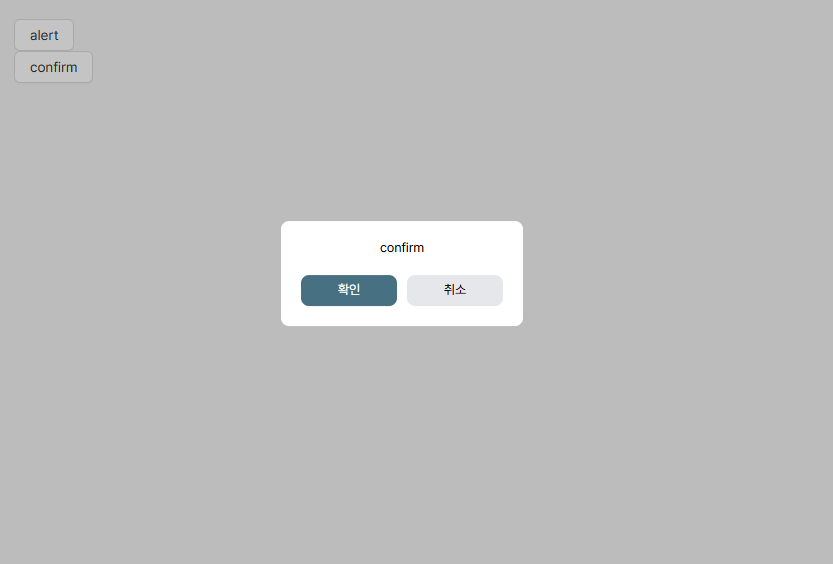

그러면 console에 확인버튼을 누르면 true가 return 되고 취소를 누르면 false가 return 되는 것을 확인할 수 있다.
728x90반응형'Front > Next' 카테고리의 다른 글
[ Next ] 공휴일 Open Api 만들기 (0) 2026.03.12 [ Next ] KaKao 지도 API 사용하기 (0) 2025.09.28 [ Next ] Redis 사용하여 캐시 관리 (0) 2025.09.28 [ Next ] MongoDB 연결 (0) 2025.09.27 [ Next ] Ably Realtime 무료 소켓 활용하여 채팅 만들기 (0) 2025.09.27